How to use COMPASS
A visual, step-by-step guide from your first assessment to a finished 90-day cycle.
1. Create your account and register your business
One account per person, and each account registers one business. Your business gets its own private workspace.
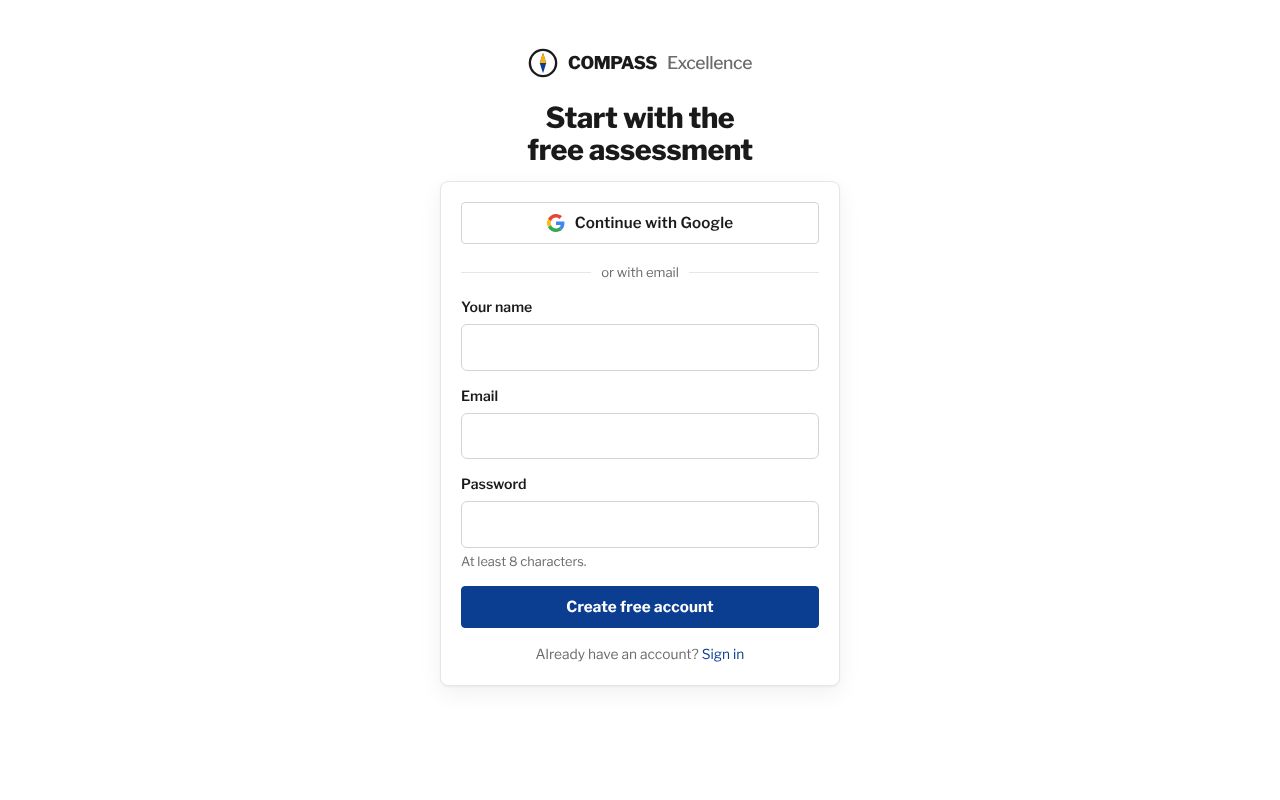
- Open the site and click Take the free assessment.
- Choose Continue with Google, or enter your name, email and a password (8+ characters).
- Enter your business name, type and the number of people (count regular freelancers too).
- Click Create workspace and start the assessment.
Signed up with email and later used Google with the same address? It is the same account.
Team members join through an invitation from the owner (see Team).
2. Take the free assessment
54 statements about how the business really runs: 6 for each of the 7 COMPASS components and 12 for the business areas. About 10 minutes.
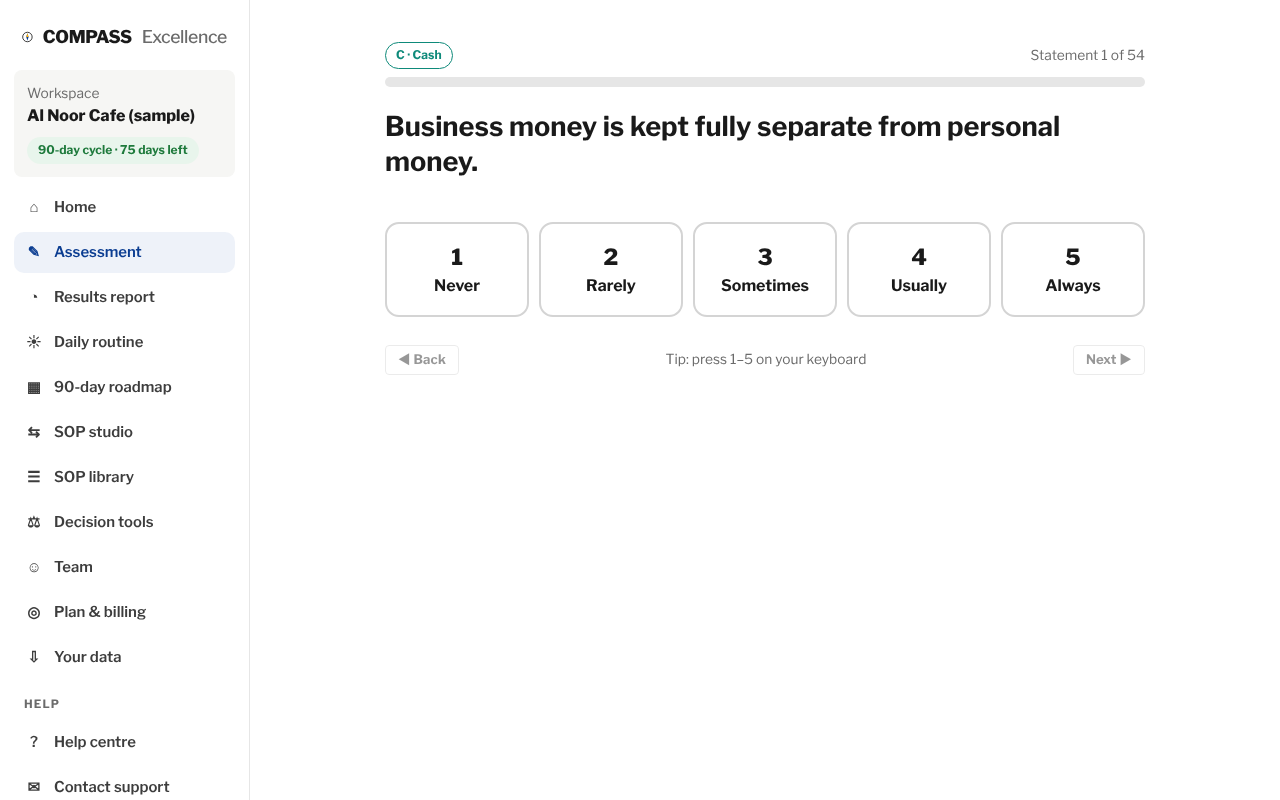
- Read each statement and rate it from 1 (never) to 5 (always) for how things are today.
- The next statement appears automatically; use Back to change an answer.
- Your progress saves as you go, so you can close the page and come back.
- Click See my results on the last statement.
Answer for what happens now, not what you plan.
Retake it at week 12 of the 90-day cycle to measure progress.
3. Read your results report
Your report shows where you are strong and where to focus first.
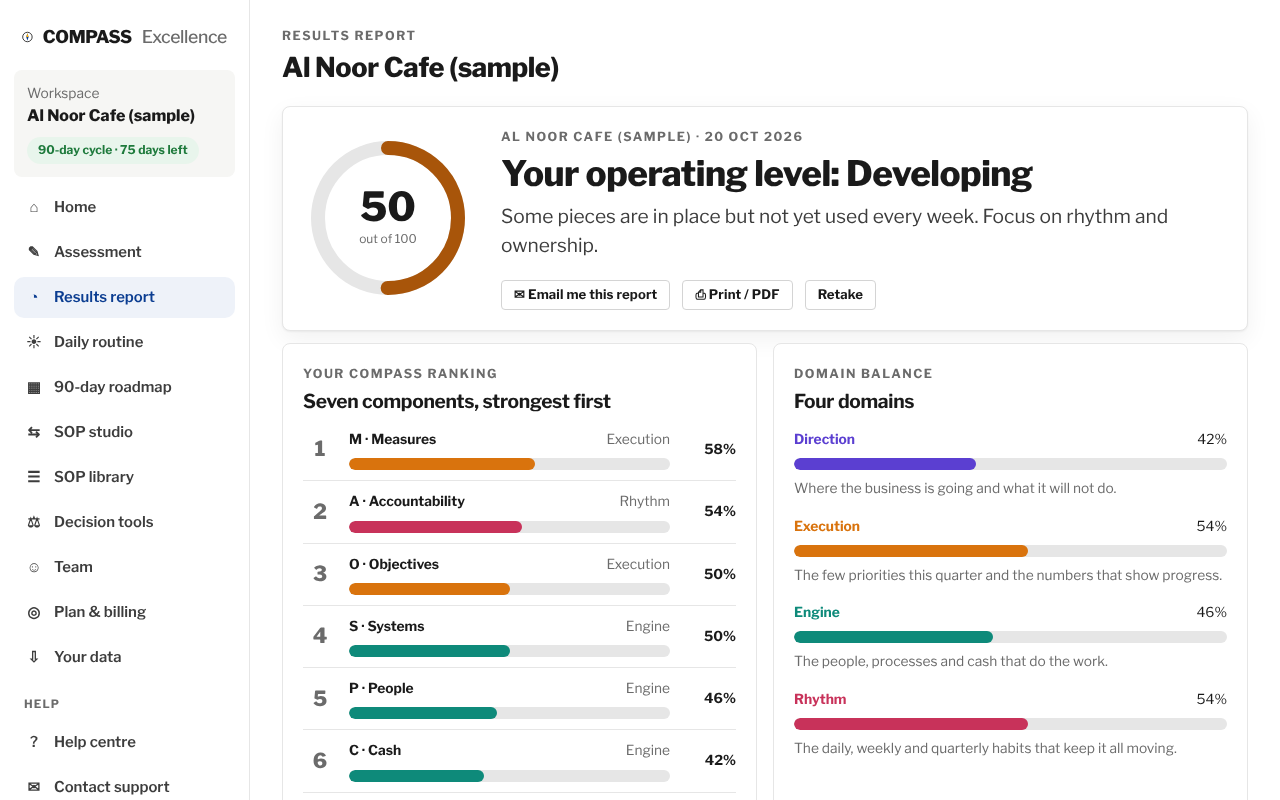
- Read your score out of 100 and your level: Starting, Developing, Established or Excellent.
- Check the ranking of the seven components and the balance of the four domains.
- Read your top 3 strengths and 3 focus areas, each with a first move.
- Scroll down for the health of your 12 business areas and how you map to 10 excellence models.
- Click Email me this report to keep a copy.
Decision models matched to your weakest areas appear on the report; click one to use it.
4. Run the 20-minute daily routine
COMPASS runs every day: 10 minutes to start the day and 10 to close it.
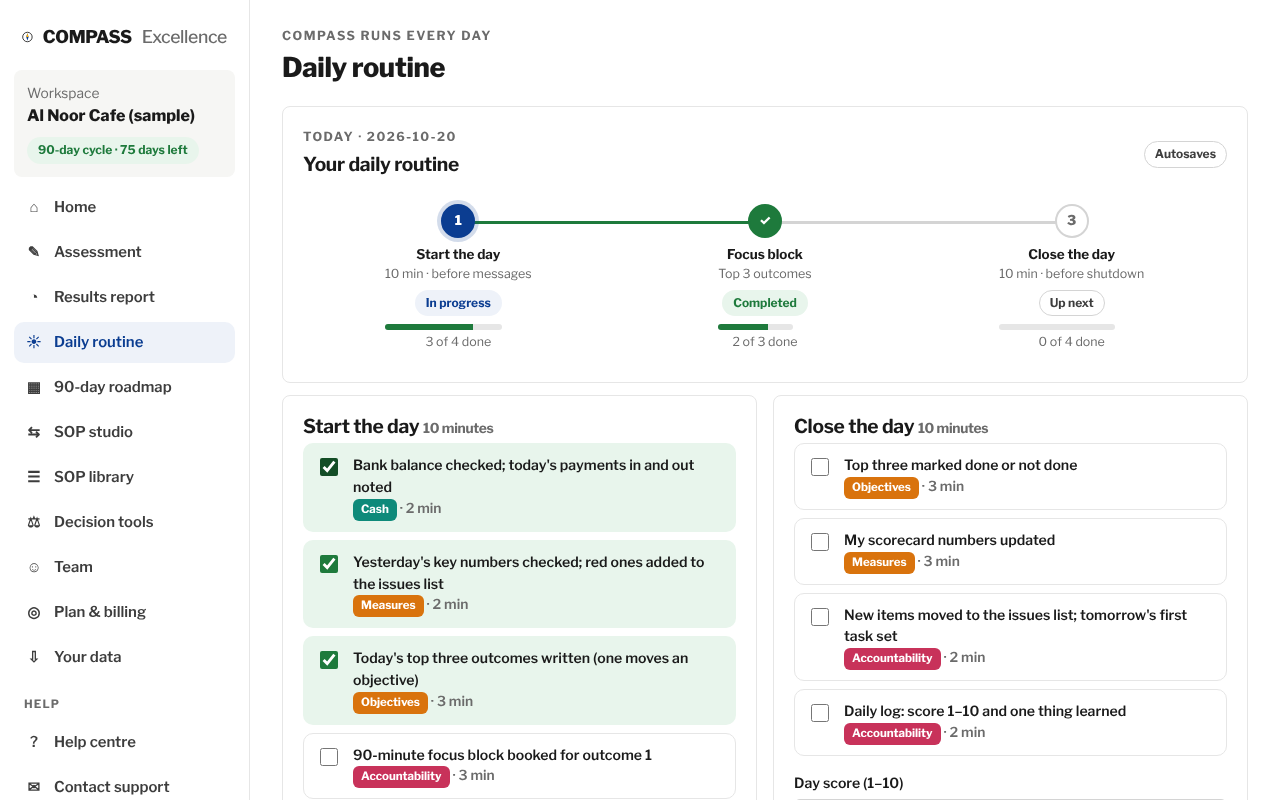
- Morning: tick the four start items and write today's top three outcomes.
- Book a 90-minute focus block for outcome 1.
- Evening: tick the four close items, give the day a score and note one thing learned.
- Watch the 14-day streak; aim for 4 of every 5 days.
Never miss twice. On a bad day, do the 3-minute version: bank balance, one priority, tick it off.
5. Start the 90-day improvement cycle (AED 99)
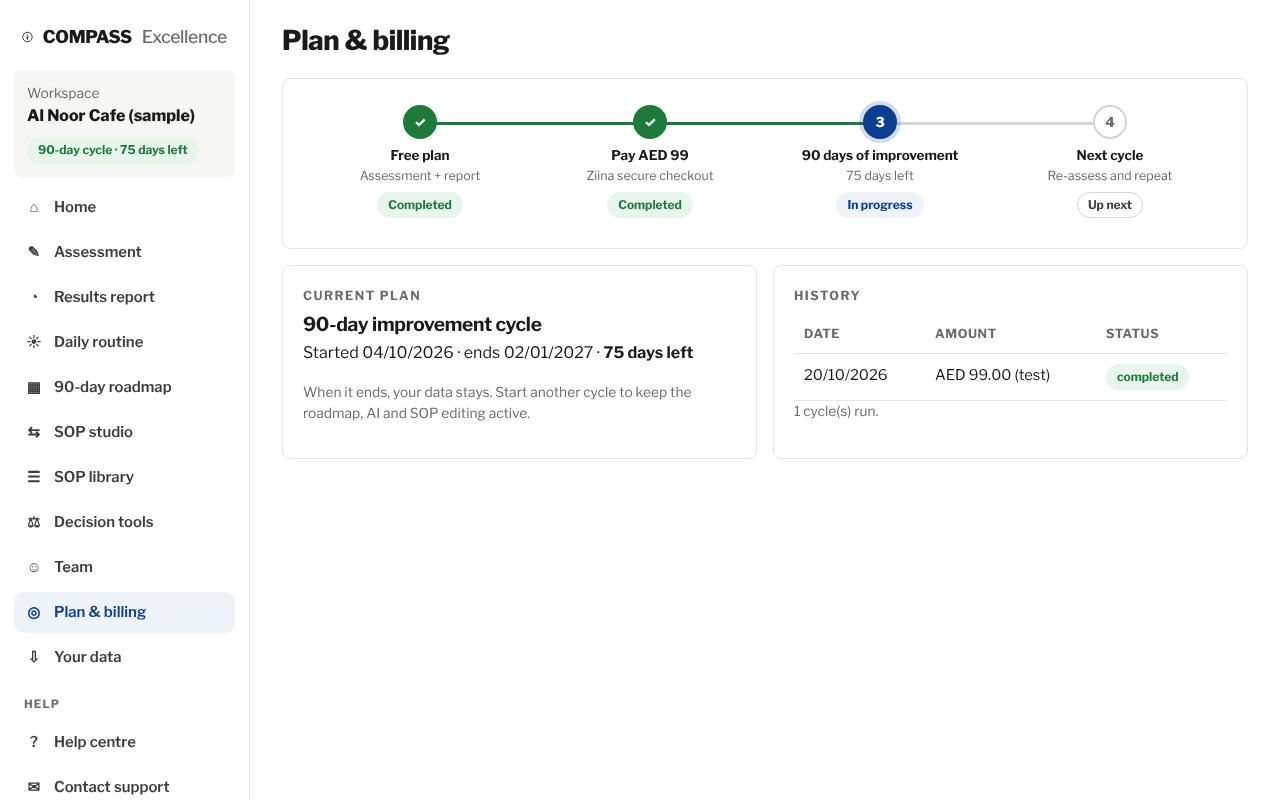
One payment unlocks 90 days of roadmap, all decision models and calculators, SOP editing, weekly email reports and AI coaching.
- Take the assessment first, so the plan can be built from it.
- Click Start the 90-day cycle · AED 99.
- Pay on Ziina's secure page (card, Apple Pay or Google Pay).
- You return to your 90-day roadmap, already filled with your tasks and SOPs.
There is no subscription; start another cycle when this one ends. Your data stays.
6. Work through the roadmap on the kanban board
The 13-week plan has five phases. The flow diagram shows what is completed, what is in progress and what is next.
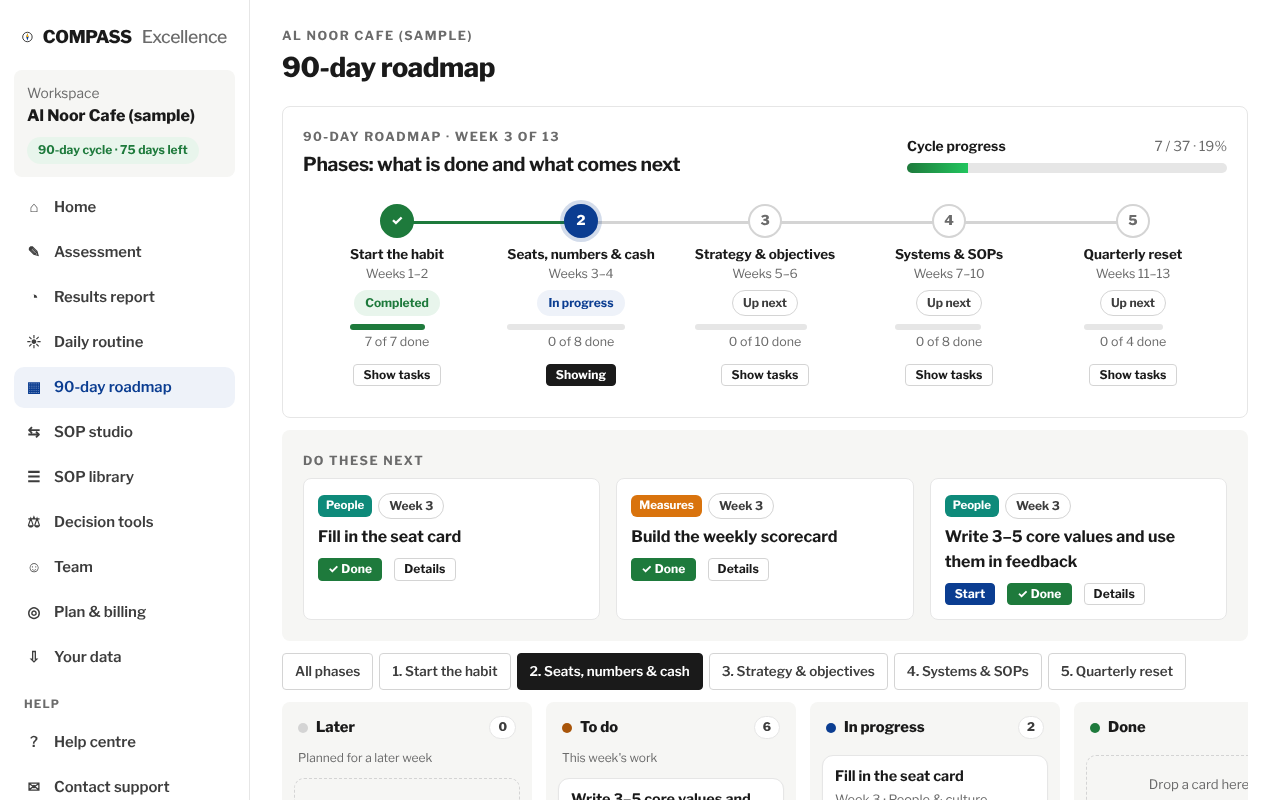
- Start with the Do these next cards at the top: click Start, then ✓ Done when finished.
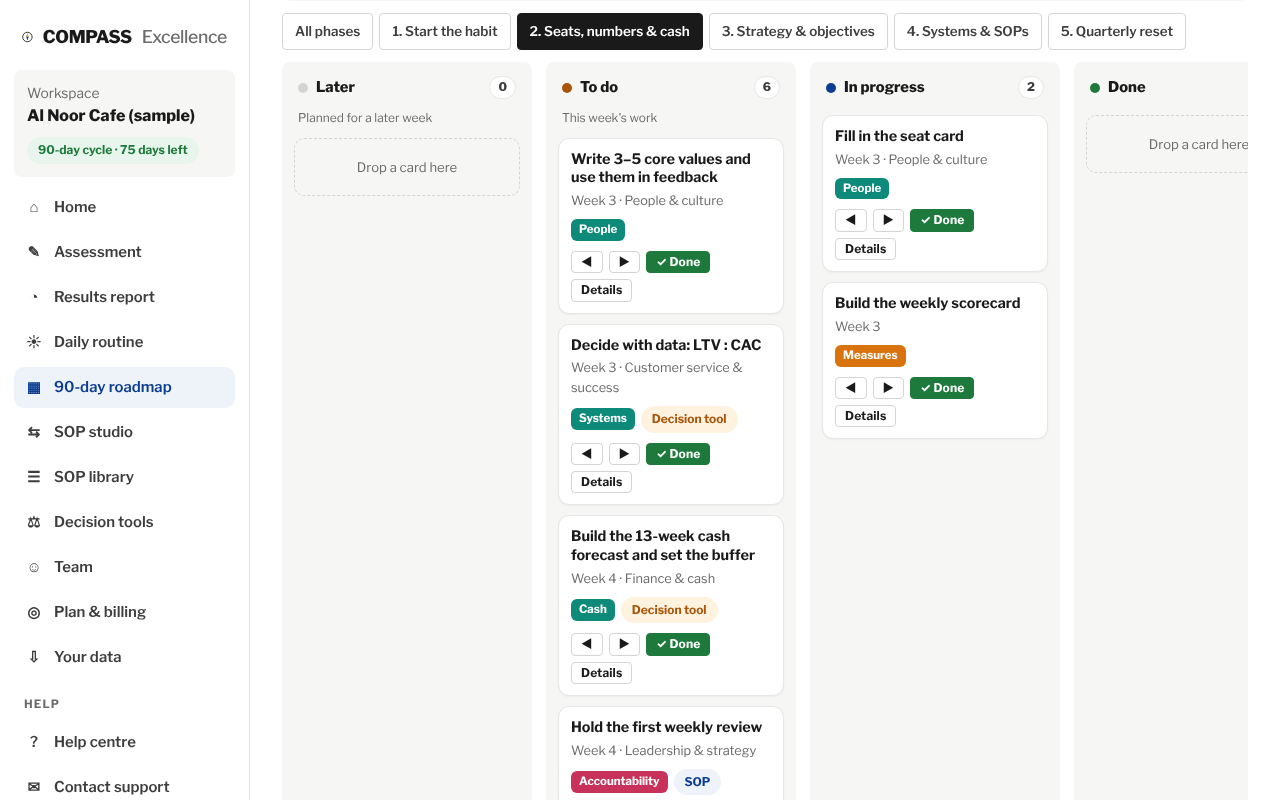
- Use the kanban board below: drag a card to another column, or use the ◀ ▶ buttons.
- Click a phase's Show tasks to focus on that phase.
- Open Details on a card to see its SOP, decision tool and helpful decision models.
- Add your own task at the bottom of the board.
In the cycle, AI can break any task into steps for your business.
7. Create your SOPs in the SOP studio
SOPs (standard operating procedures) are the checklists that let others do the work the same good way every time.
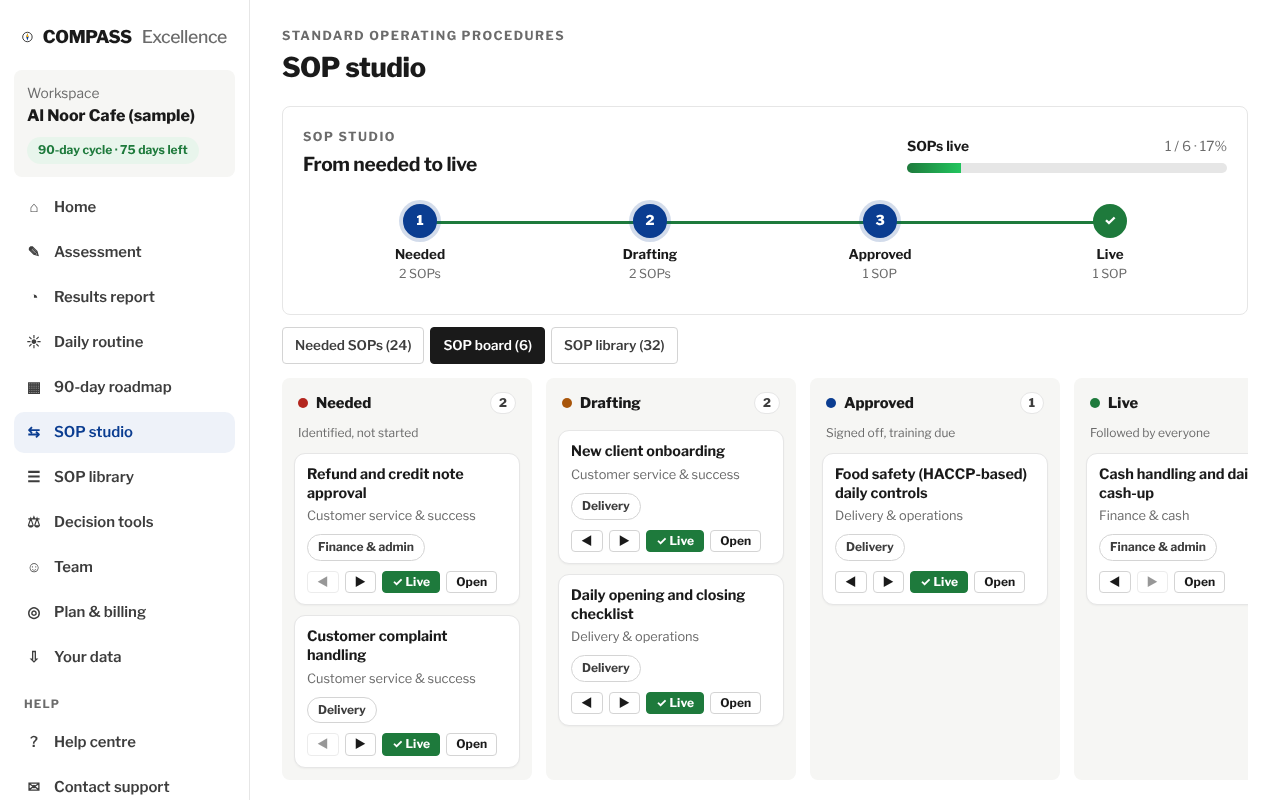
- Open Needed SOPs: these are suggested from your weakest areas and business type.
- Click Add to board to start from a proven template.
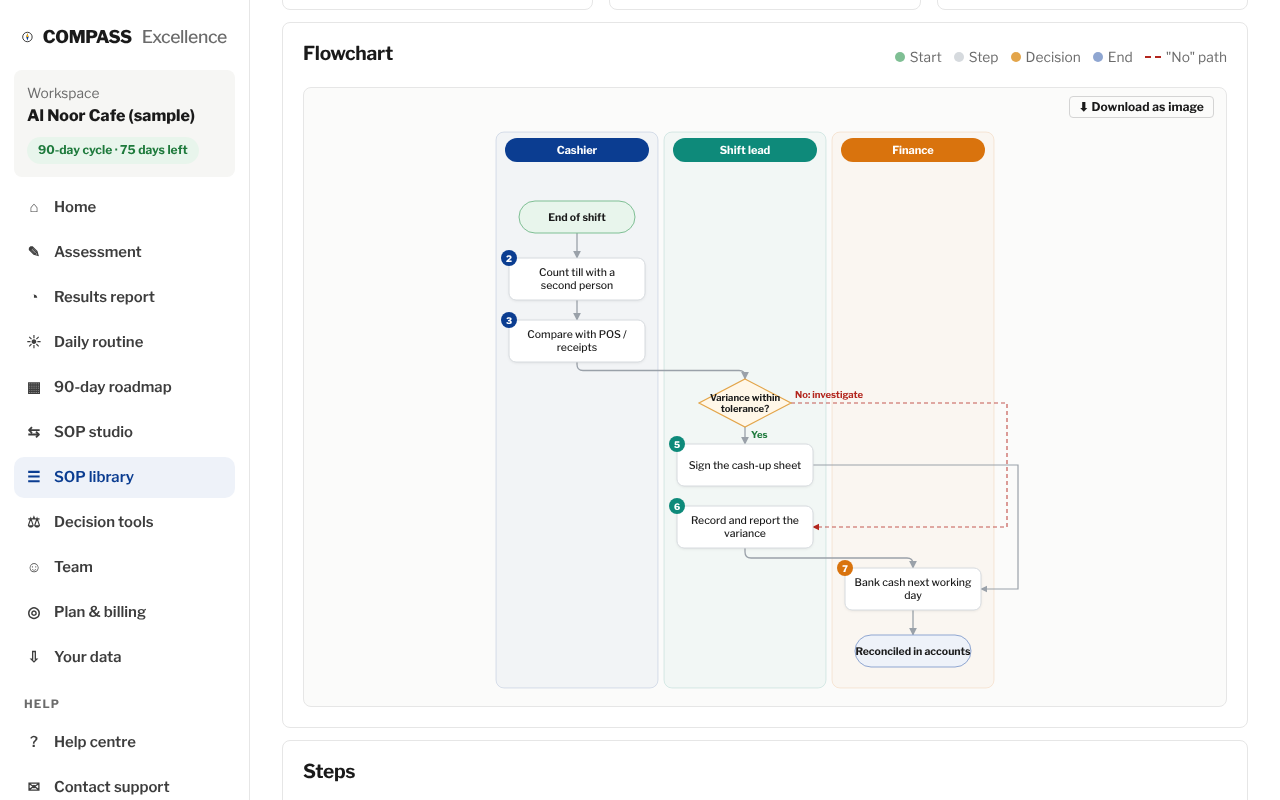
- Open the SOP to edit its steps, roles and decisions; the flowchart updates as you type.
- Move it across the board: Needed → Drafting → Approved → Live.
- Click ⬇ Download as image to save the SOP as one picture: the written steps beside the flowchart, ready to print or share on WhatsApp.
Describe any process and AI drafts a custom SOP as a flowchart (90-day cycle).
8. Browse the SOP library
Every proven SOP template in one place, grouped by business domain. New templates added by the COMPASS team appear here automatically, marked New.
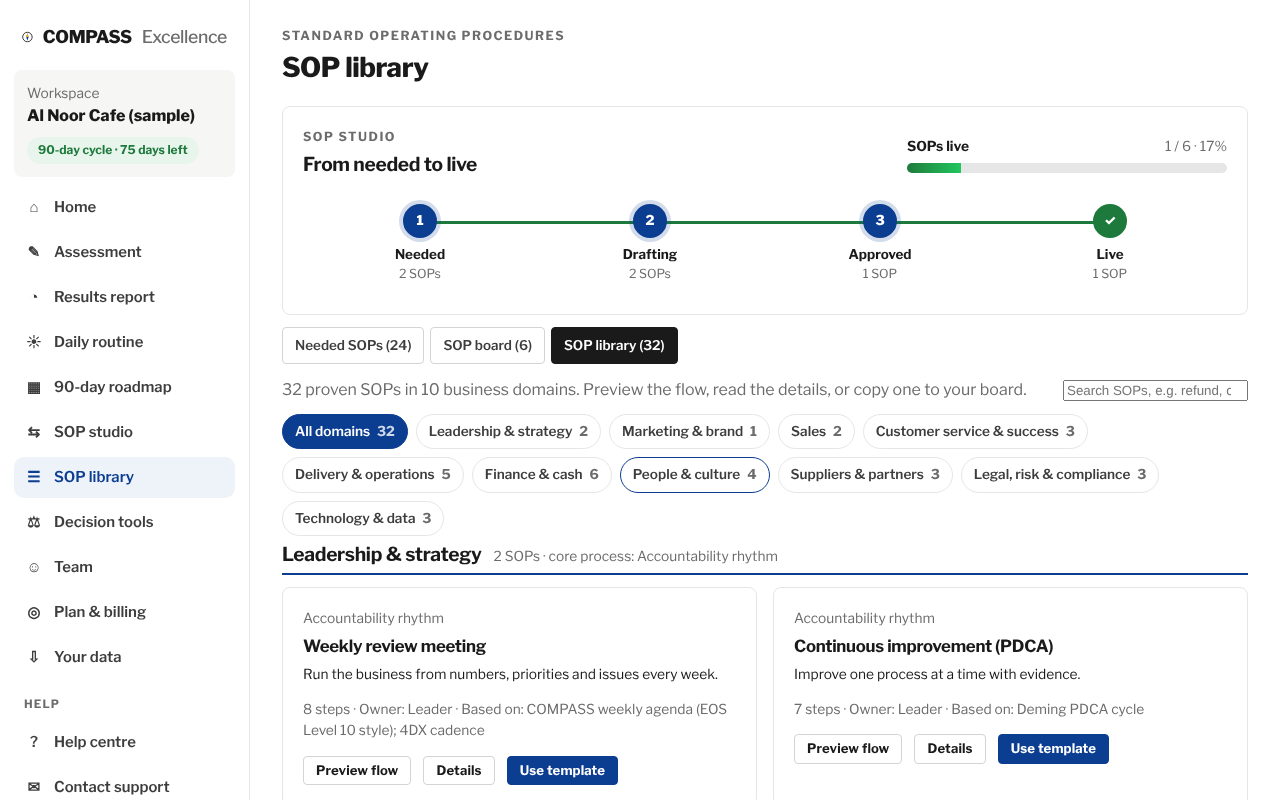
- Open SOP library in the menu.
- Click a domain, such as Finance & cash or Sales, or search a word such as refund or onboarding.
- Click Preview flow to see the flowchart, or Details for the full SOP.
- Click Use template to copy it to your SOP board and adapt it (90-day cycle).
9. Decide with the right model
153 business scenarios mapped to 51 proven decision models, plus 34 calculators.
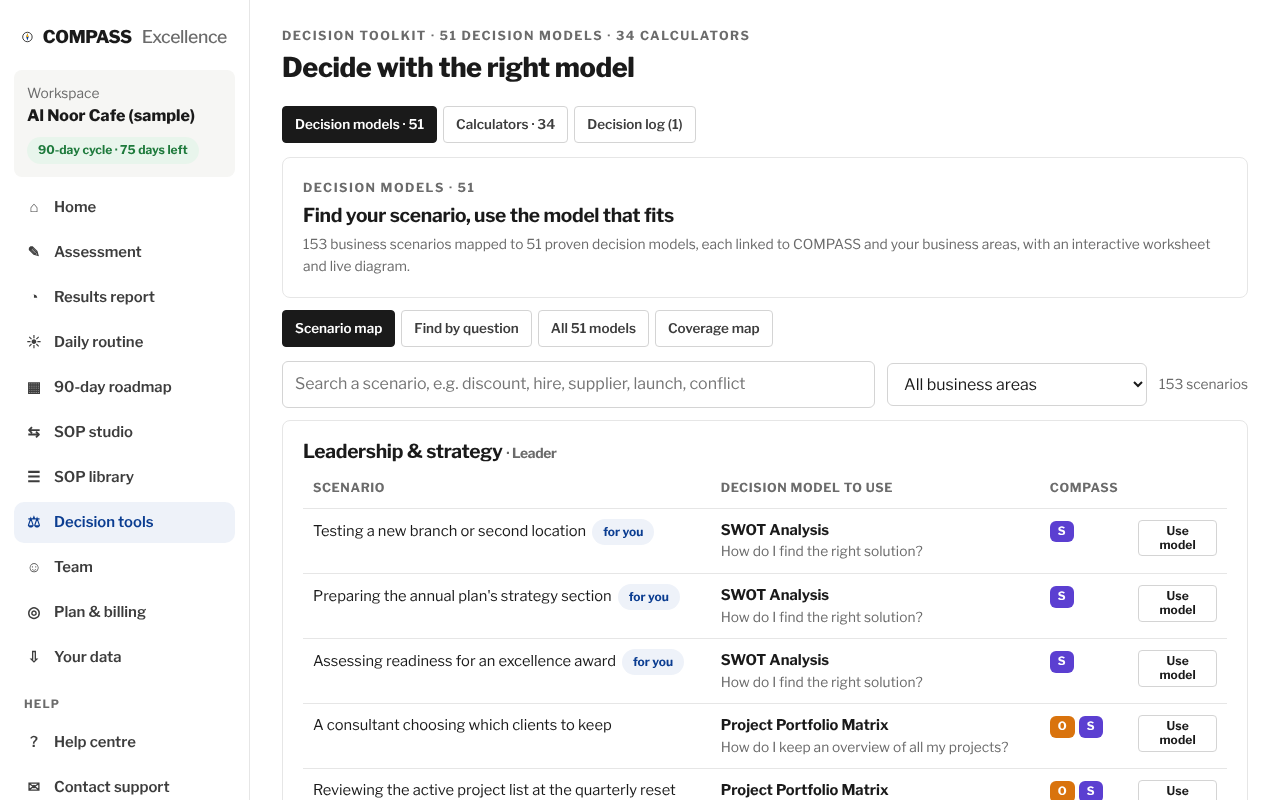
- Open Decision tools. The Scenario map lists situations by business area.
- Search a word such as discount, hire, supplier or launch, then click Use model.
- Or use Find by question: describe your decision in a sentence.
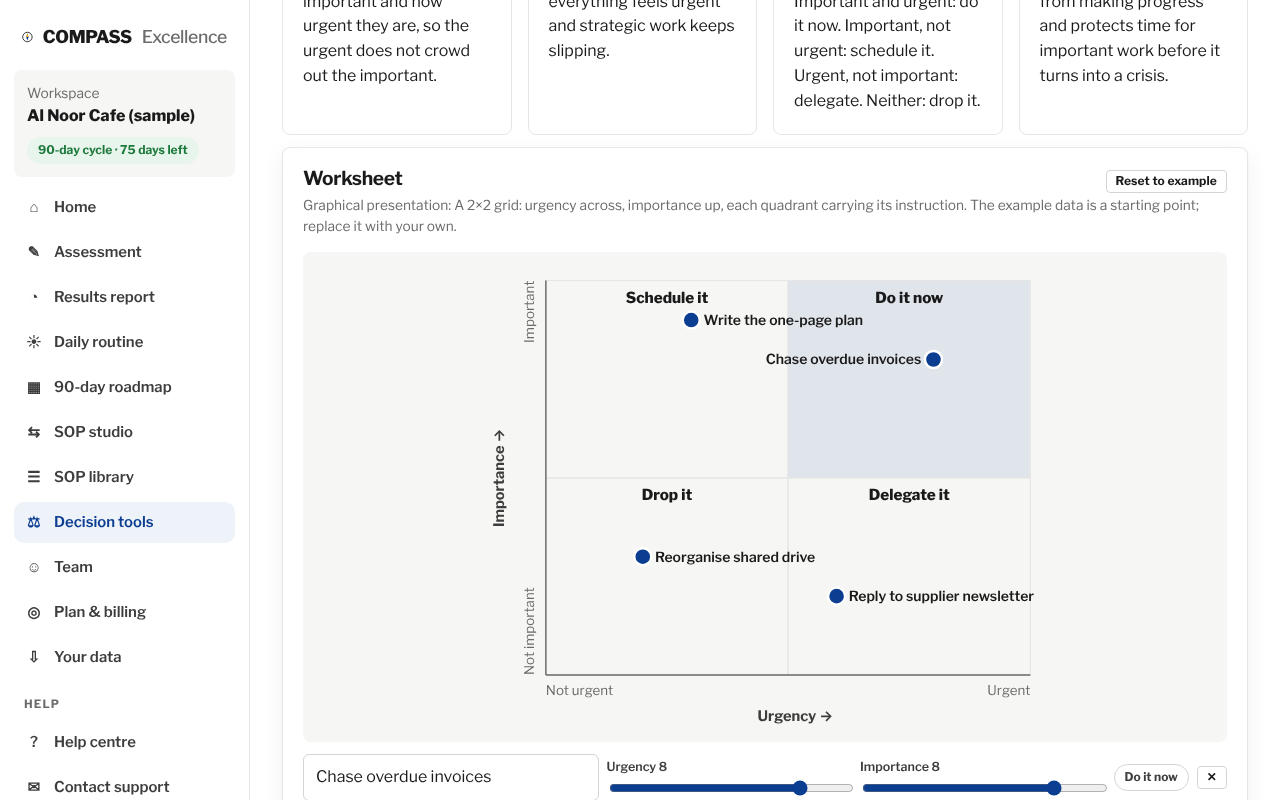
- Fill the worksheet; the diagram and the result update as you go.
- Click Save worksheet to keep it in the decision log.
Coverage map shows which models serve each business area and decision type.
10. Use the calculators
Calculators handle the number-based decisions: cash runway, discounts, pricing, hiring, suppliers, risk, automation and more.
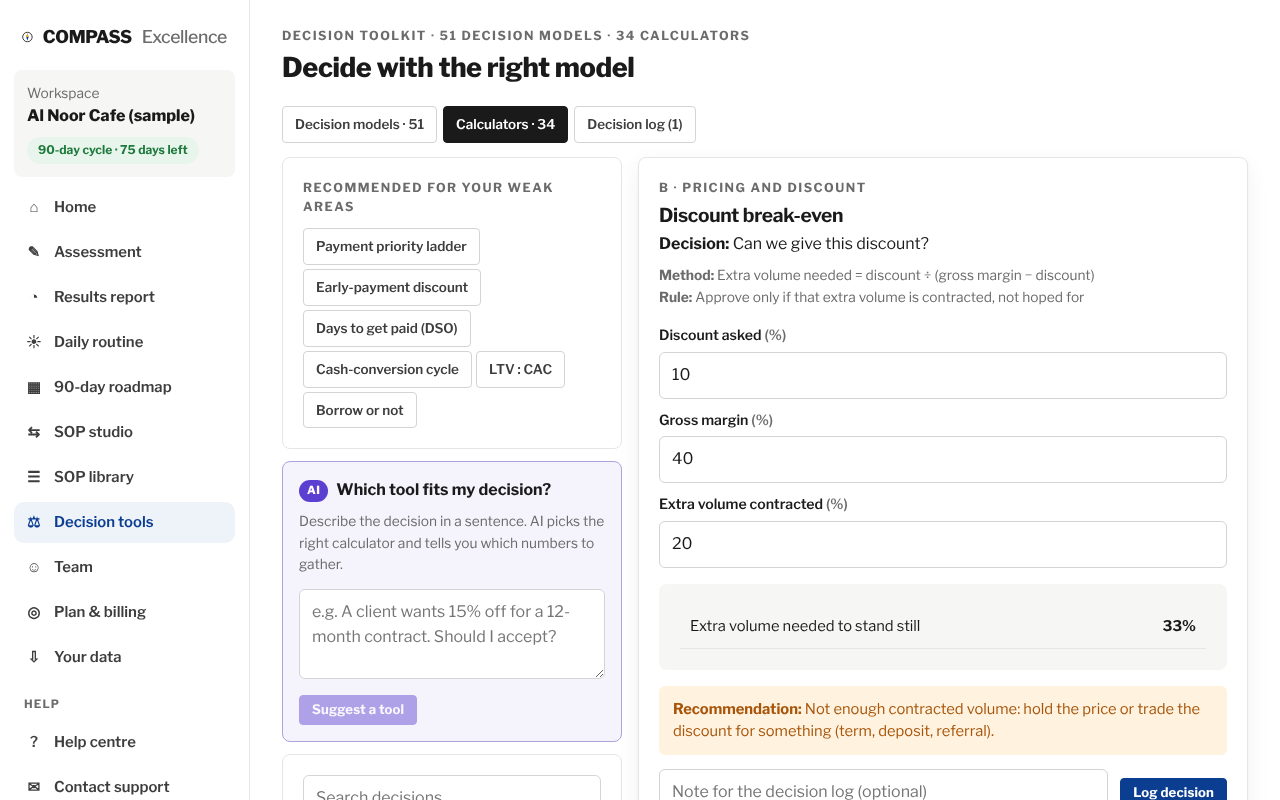
- Open Decision tools → Calculators.
- Pick a recommended tool or search.
- Enter your numbers; the recommendation updates instantly.
- Add a note and click Log decision.
11. Invite your team
Everyone in your business works in the same workspace.
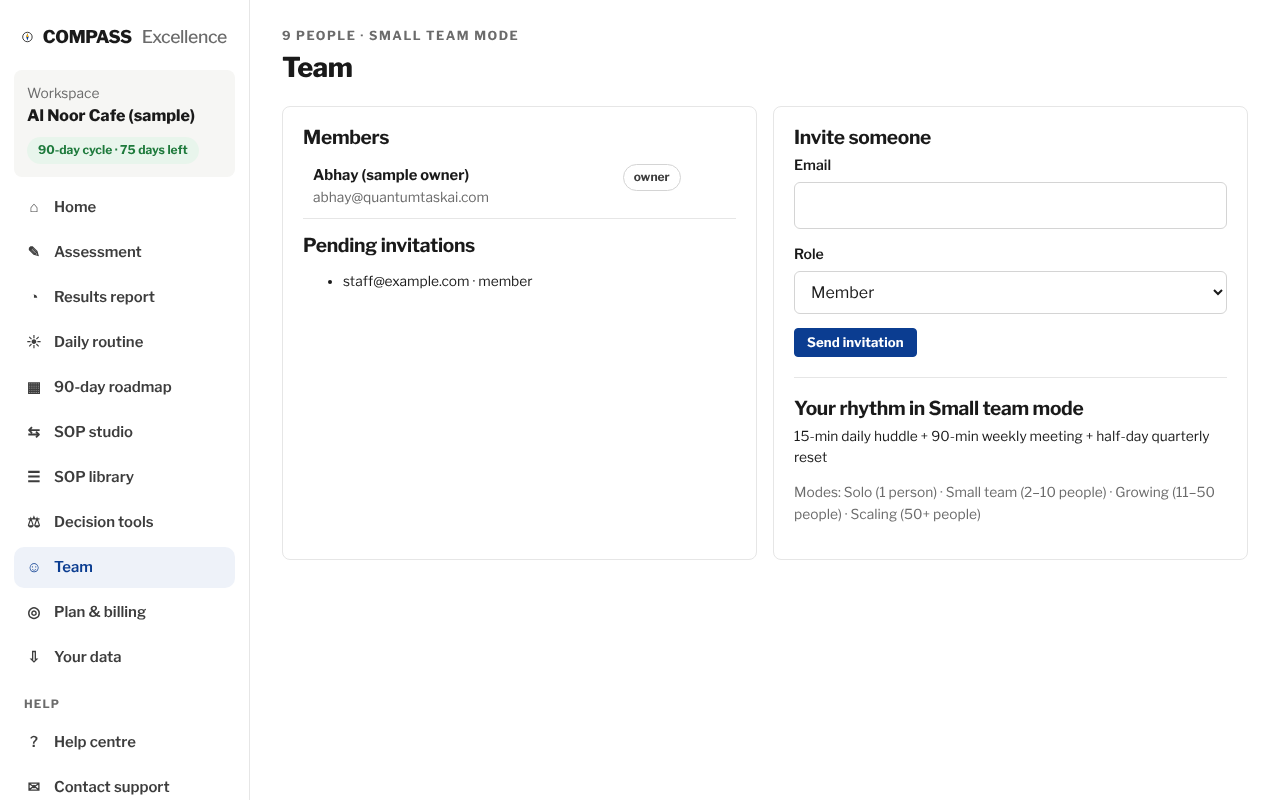
- Open Team.
- Enter the person's email, choose Member or Admin, and click Send invitation.
- They accept the email invitation and sign up or sign in.
Each account belongs to one business. Someone already in another business needs a different email.
12. Export your data
Your data is yours. Export it at any time.
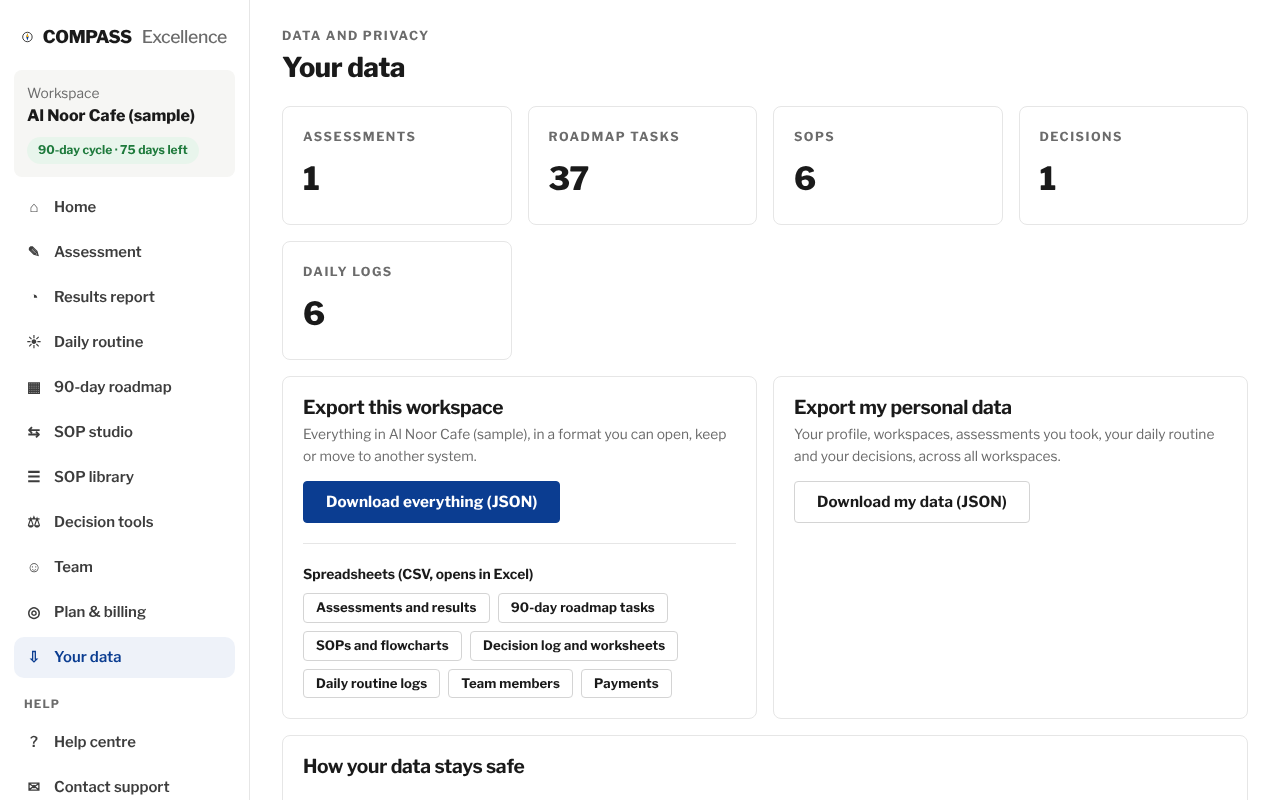
- Open Your data in the menu.
- Owners and admins: click Download everything (JSON), or a spreadsheet button for one part.
- Anyone: click Download my data for your personal data across the app.
App updates never delete or rewrite your data, and the database is snapshotted every time a new version goes live.
13. Get help
Stuck? Help is one click away in the menu.
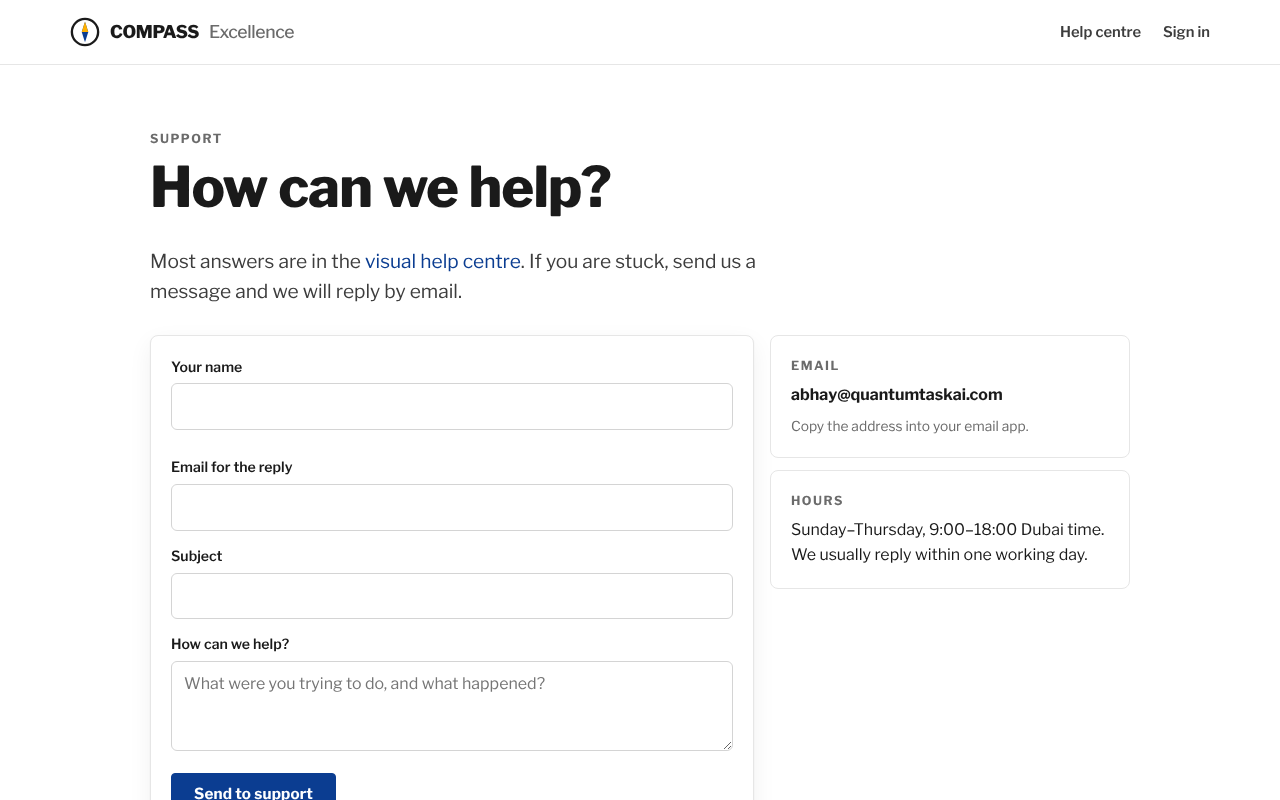
- Click Contact support in the menu (or at the bottom of any page).
- Describe what you were trying to do and what happened.
- You receive a reference number; we reply by email, usually within one working day.
14. Admin dashboard (platform admins)Admins
For the people who run the platform.
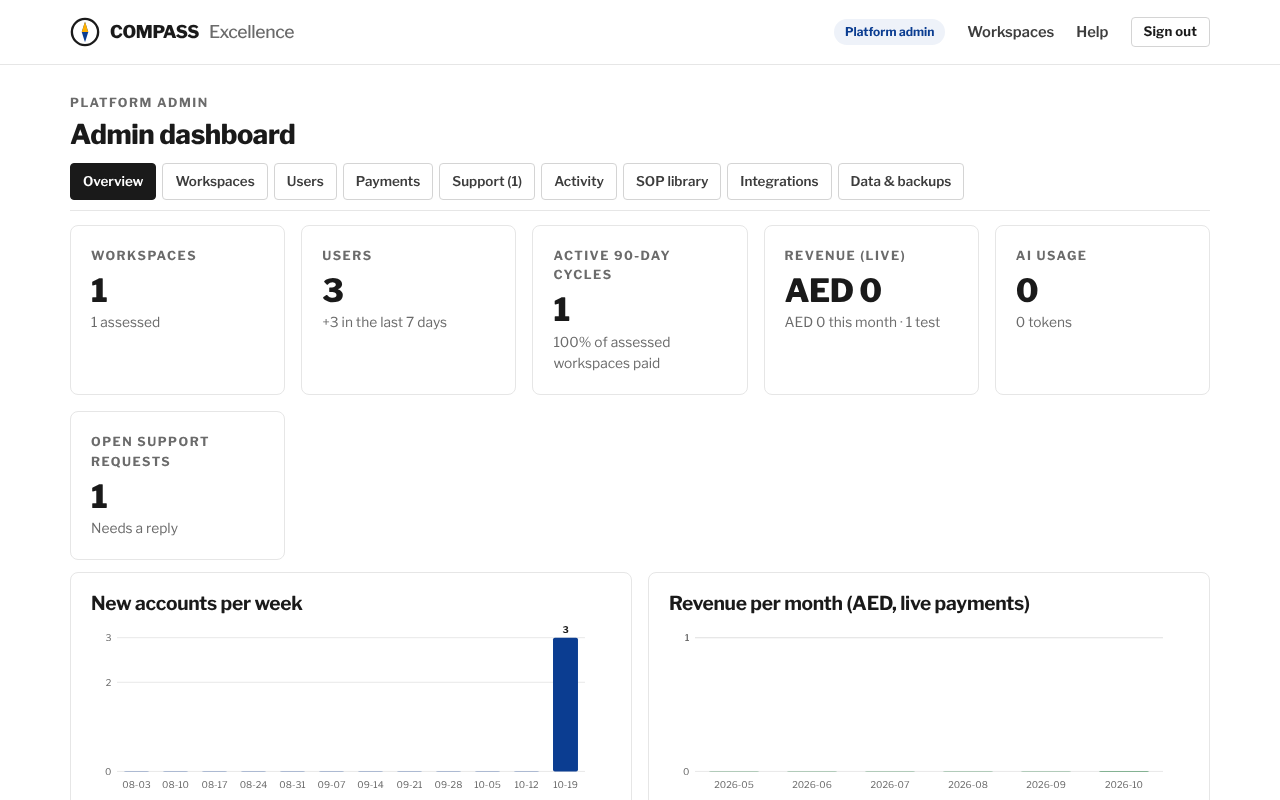
- Open Admin dashboard from your workspace list.
- Overview: KPIs, sign-ups and revenue charts, conversion and system health.
- Workspaces, Users, Payments, Activity: searchable lists with CSV export.
- Support: reply by email, then mark requests answered or closed.
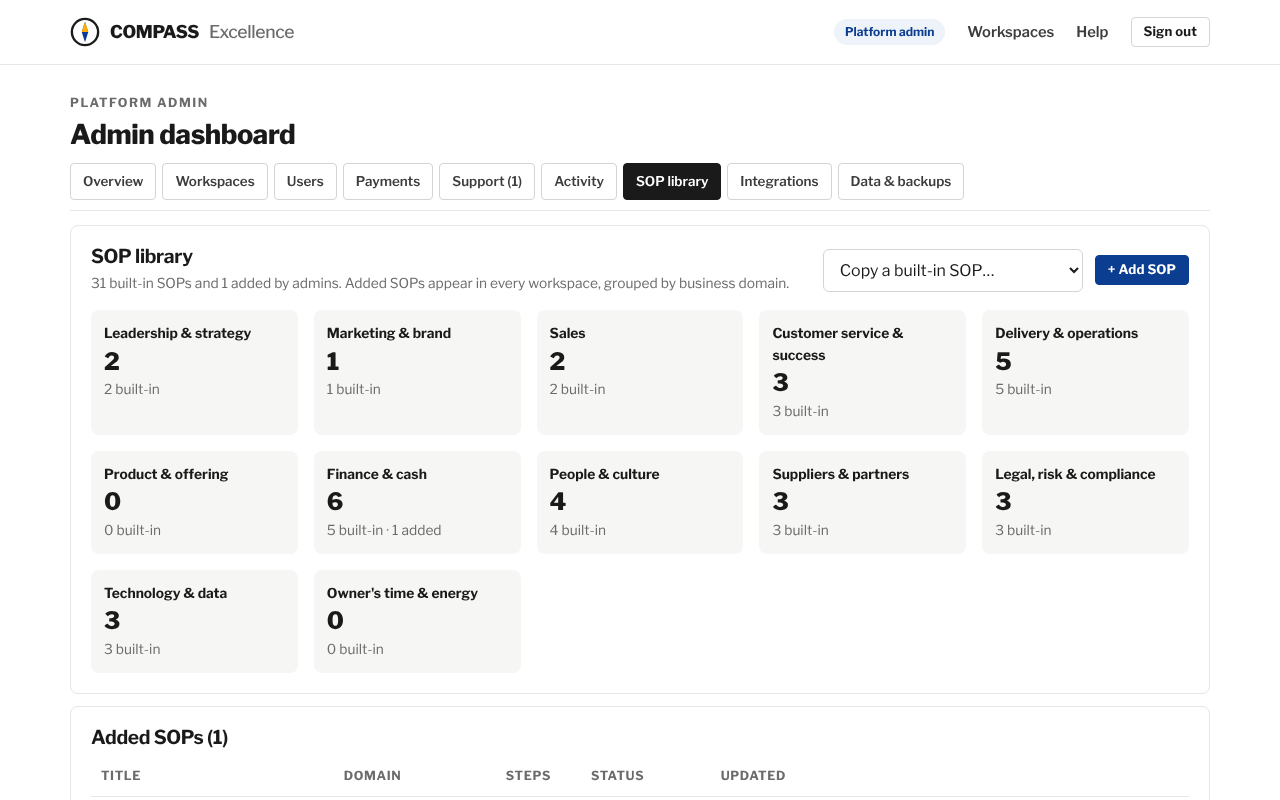
- SOP library: add a new SOP for every workspace, or copy a built-in one and adapt it; publish, unpublish, edit or remove it.
- Emails & quotes: edit the text of every system email with a live preview, switch emails on or off, send yourself a test, and add quotes and motivation lines (one at a time or many at once) that the system picks at random.
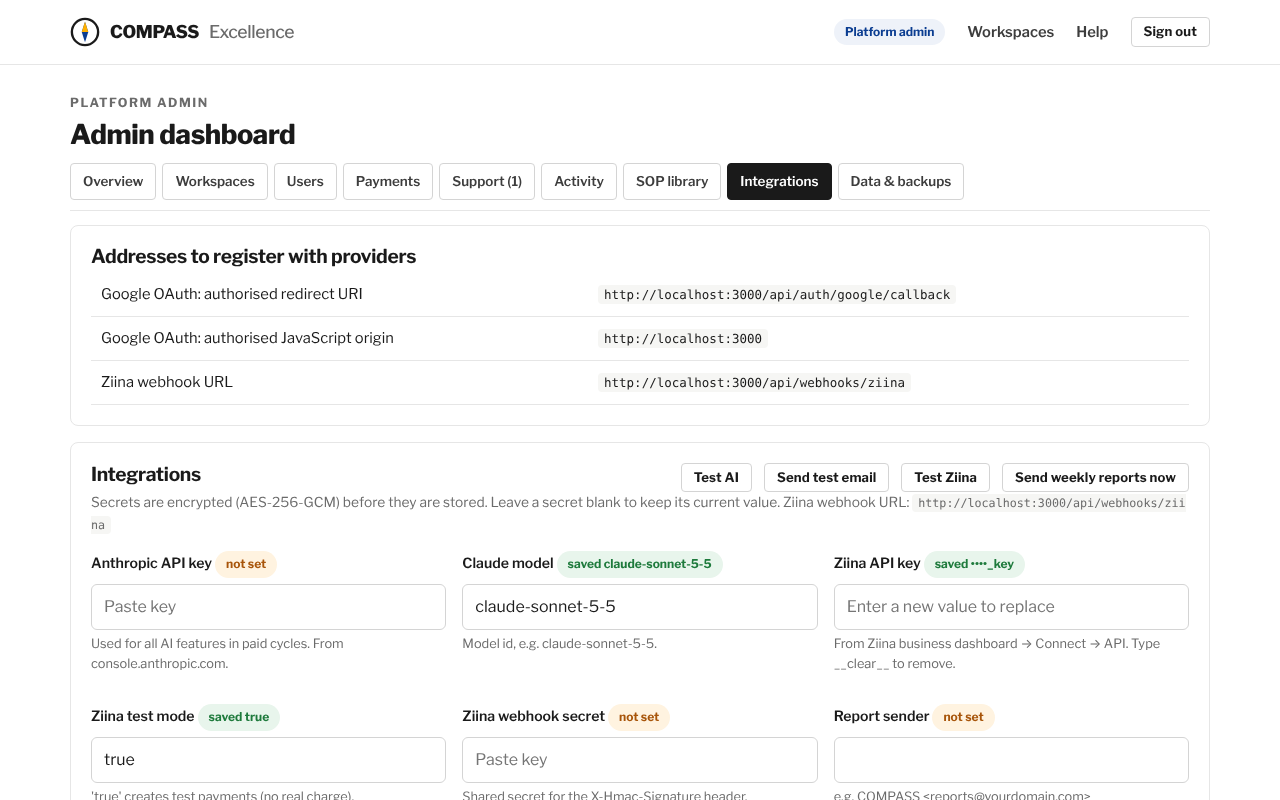
- Integrations: add the Anthropic, Ziina, email and Google keys; use the test buttons.
- Data & backups: download a full JSON backup.
Questions
Is the assessment really free?
Yes. The assessment, the full results report, the daily routine, the SOP library and a set of decision models are free.
What happens when the 90 days end?
Your data stays. Roadmap editing, AI and the paid models pause until you start another cycle.
Can I have more than one business?
Each account registers one business. Use a separate account (email) for another business.
What emails will I get?
A welcome, a step-by-step email at each stage (results, the start of your cycle, milestones, halfway, re-assessment and the finish) and a short daily start-your-day email with a quote, your progress and today's checklist. Change them any time under Email preferences in the menu or the link at the bottom of every email.
Who can see my data?
Only people in your business workspace, and the platform admins who support you.
Will an update delete my data?
No. Updates can only add to the database; a release is blocked if it would delete or rewrite existing data, and the database is snapshotted at every release.
How do I cancel?
There is nothing to cancel: each 90-day cycle is a single payment.
Still stuck?
Send us a message and we will reply by email.